
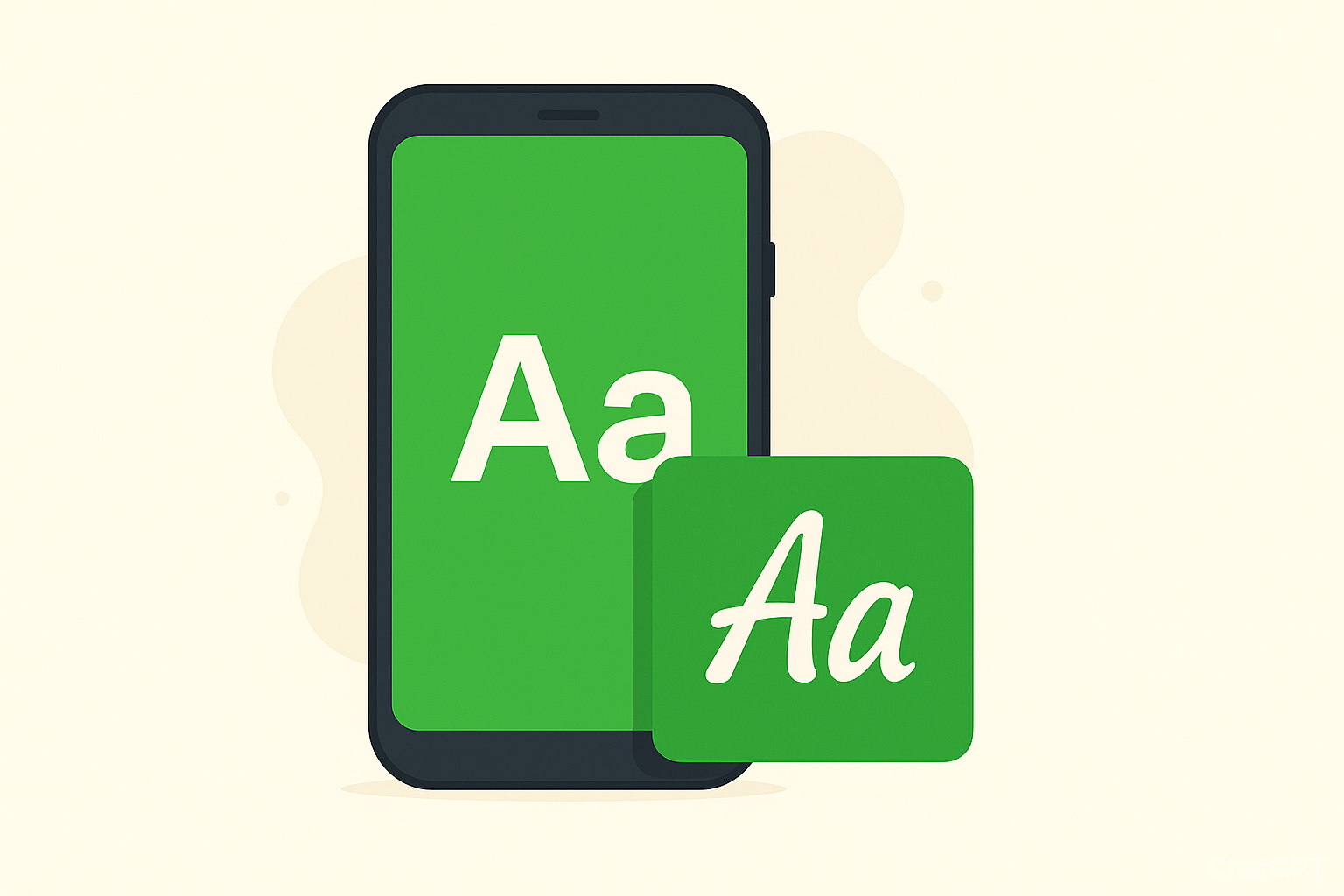
Hey there! 👋, So you want to make your React Native app look more professional and unique? Well, you’re in the right place! Today I’m going to show you exactly how to add custom fonts to your React Native app. Trust me, it’s not as complicated as it sounds.
Why Should You Care About Custom Fonts?
Look, I get it the default fonts that come with React Native are… well, they’re fine. But if you want your app to stand out and look like it was made by a pro, custom fonts are the way to go.
Think about it when you see apps like Instagram, Spotify, or any other popular app, they all have their own unique font style. That’s not an accident! Custom fonts help create a brand identity and make your app feel more polished.
What You’ll Need Before We Start
Don’t worry, you don’t need to be a font expert or anything fancy. Here’s what you should have:
- A React Native project (obviously!)
- Basic knowledge of how React Native styling works
- Some font files (we’ll get these together)
That’s it! If you can write a simple React Native component, you can definitely add custom fonts.
Complete Guide: Adding Custom Fonts to React Native
Step 1: Download Custom Fonts from Google Fonts
First things first we need some fonts to work with. The good news? There are tons of free, beautiful fonts out there!
Where to find fonts:
- Google Fonts – This is my go-to place. It’s free, easy to use, and has amazing fonts
- Font Squirrel – Another great free option
- Adobe Fonts – If you want premium fonts (but you’ll need a subscription)
Let’s grab Poppins (it’s super popular and looks great):
- Go to [Google Fonts]
- Type “Poppins” in the search box
- Click on the font and select the weights you want (Regular, Bold, Medium, Light, etc.)
- Hit the download button – you’ll get a ZIP file
- Extract that ZIP file and you’ll see a bunch of `.ttf` files
Pro tip: Don’t download every single weight unless you really need them. Each font file adds to your app’s size, so only grab what you’ll actually use.
Step 2: Create Assets Folder Structure in React Native
Now we need to organize these fonts properly in your project. This is like organizing your closet everything has its place!
// Go to your project folder
cd your-react-native-project

//Create the fonts folder
mkdir -p assets/fontsHere’s what your project should look like:
code_with_atul_app/
├── assets/
│   └── fonts/
│       ├── Poppins-Regular.ttf
│       ├── Poppins-Medium.ttf
│       ├── Poppins-Bold.ttf
│       ├── Poppins-Light.ttf
│       └── Poppins-Italic.ttf
├── App.tsx
└── package.jsonJust drag and drop your `.ttf` files into the `assets/fonts` folder. Easy peasy!
Step 3: Configure React Native Asset Linking
This is where the magic happens! We need to create a special file that tells React Native “Hey, I have some custom fonts over here!”
Create a file called `react-native.config.js` in your project root (same level as your `package.json`):
module.exports = {
  project: {
    ios: {},
    android: {},
  },
  assets: ['./assets/fonts'],
}What this does:
- It’s like giving React Native a map to find your fonts
- It works for both iPhone and Android apps
- It sets up everything automatically
Step 4: Link Fonts to iOS and Android Platforms
Now comes the moment of truth! Run this command in your terminal:
npx react-native-assetWhat happens here
- React Native copies your fonts to the right places for both iOS and Android.
- It updates all the necessary configuration files.
- It’s like installing the fonts on your phone, but for your app.
Important stuff to remember:
- Run this command every time you add new fonts
- You might need to clean and rebuild your project after this
- If you’re on iOS, you might also need to run `
cd ios && pod install`
Step 5: Implement Custom Fonts in React Native Components
Now for the fun part.. actually using your fonts in your app, Here’s how you do it:
import React from 'react';
import { View, Text, StyleSheet } from 'react-native';

const App = () => {
  return (
    <View style={styles.container}>
      <Text style={styles.title}>Look at this beautiful font!</Text>
      <Text style={styles.subtitle}>This is Poppins Medium</Text>
      <Text style={styles.body}>And this is regular Poppins</Text>
    </View>
  );
};

const styles = StyleSheet.create({
  container: {
    flex: 1,
    justifyContent: 'center',
    alignItems: 'center',
    backgroundColor: '#f0f0f0',
  },
  title: {
    fontFamily: 'Poppins-Bold',
    fontSize: 24,
    color: '#333',
    marginBottom: 10,
  },
  subtitle: {
    fontFamily: 'Poppins-Medium',
    fontSize: 18,
    color: '#666',
    marginBottom: 10,
  },
  body: {
    fontFamily: 'Poppins-Regular',
    fontSize: 16,
    color: '#888',
  },
});

export default App;The key part: `fontFamily: 'Poppins-Bold'` – this is how you tell React Native which font to use!
React Native Font Best Practices and Tips
Font Naming Convention for React Native
- Keep it simple: `
FontName-Weight` (like `Poppins-Bold`) - No spaces in the file names
- Be consistent with your naming
Performance Optimization for Custom Fonts
- Only use the font weights you actually need
- Some fonts can be pretty big, so don’t download everything
- Test your app’s performance after adding fonts
Cross-Platform Font Compatibility
- Check how your fonts look on both iPhone and Android
- Sometimes fonts render a bit differently on each platform
- Always test on real devices if possible
Troubleshooting Common React Native Font Issues
My fonts aren’t showing up
- Make sure you ran `
npx react-native-asset` - Check that the font names match exactly (they’re case-sensitive!)
- Try cleaning and rebuilding your project
It works on Android but not iPhone
- Run `
cd ios && pod install` after linking fonts - Make sure your fonts are properly added to the iOS bundle
The fonts look weird on Android
- Check that your fonts are in `
android/app/src/main/assets/fonts/` - Sometimes you need to restart your development server
Advanced React Native Font Management
Creating Font Constants File
Instead of typing 'Poppins-Bold' everywhere, create a constants file:
// constants/fonts.ts
export const FONTS = {
  REGULAR: 'Poppins-Regular',
  MEDIUM: 'Poppins-Medium',
  BOLD: 'Poppins-Bold',
  LIGHT: 'Poppins-Light',
  ITALIC: 'Poppins-Italic',
};Then use it like this:
import { FONTS } from '../constants/fonts';

const styles = StyleSheet.create({
  title: {
    fontFamily: FONTS.BOLD,
    fontSize: 24,
  },
  body: {
    fontFamily: FONTS.REGULAR,
    fontSize: 16,
  },
});This way, if you ever want to change fonts, you only need to update one file.
Conclusion: Successfully Adding Custom Fonts to React Native
Congratulations. You’ve successfully added custom fonts to your React Native app. Your app now looks more professional and unique.
What’s Next After Adding Custom Fonts?
Now that you have custom fonts working, you might want to:
- Experiment with different font combinations
- Create a consistent typography system for your app
- Learn about font pairing (which fonts work well together)
Additional Resources for React Native Font Development
If you run into any issues, don’t panic! Here are some helpful resources:
Remember, every developer runs into font issues at some point. You’re not alone, and you’ll figure it out.
Happy coding! 🚀
If this guide helped you, consider sharing it with other developers who might be struggling with fonts. We’re all in this together. And Let me know in the comments if you’re experiencing any issues or if you’ve found additional optimizations that work for your app.